


How to Design an Ecommerce Website: A Complete Guide
So it’s time to build your ecommerce website, huh?
You’re in the right spot!
In this super practical guide, we’re walking you through how to design your ecommerce website in five simple steps.
Here’s what you need to do.
Step 1: Choose Where Your E-commerce Website Will Live
Before you think about layouts, colors, or features, you need to decide which platform you’ll use to support your store and how it functions.
WordPress and Shopify are the most popular options, with ecommerce sites selling products ranging from niche fragrances to other consumer goods often using Shopify, while BigCommerce is also common
And then there’s WooCommerce, which works with WordPress. (Though you can technically use WordPress with Shopify or BigCommerce, too.)
Let’s look at the differences and combos below.
What is WordPress? And how do WooCommerce and BigCommerce fit in?
WordPress is a website builder and content management system. It gives you a lot of control, but you’re responsible for hosting, updates, and maintenance.
You can use it to create blogs, business sites, portfolios, and online stores.
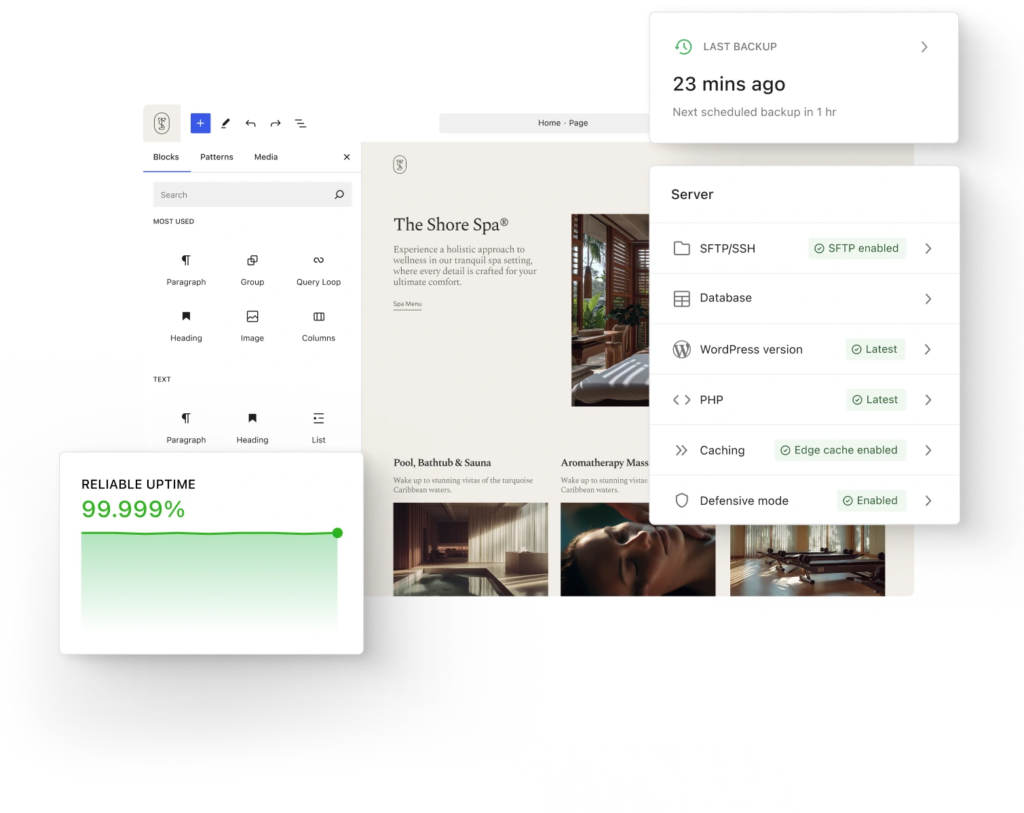
To sell products, you need to add a plugin like WooCommerce or BigCommerce.
BigCommerce can run its own, and may be a good option for you if you want an out-of-the-box approach to set up your site. WooCommerce requires WordPress and can’t run standalone.
Consider opting for WordPress and WooCommerce if high customization is a priority. And, with managed hosts like InstaWP, you can simplify the WooCommerce store development. You get a built-in MCP that allows you to connect your store with 13 AI tools, making basic development easy. Additionally, the pay-as-you-go hosting plans ensure that you can run your online store on optimized resources.
But consider BigCommerce for faster launches. (Not so fast though. More on BigCommerce in a bit!)
Before choosing, look at each platform’s pricing plans to make sure they include what you need and are in budget. Make sure you also like their higher-tiered plans, because you may need to scale up as your business grows.
Fun fact: One in three online stores runs on WooCommerce powered by WordPress, according to WordPress Market Share research.
What is Shopify?
Shopify is an all-in-one e-commerce platform. It’s built specifically for selling online. Hosting, security, checkout, and payments are all handled for you. You focus on products, branding, and marketing instead of the technical side.
What’s the difference between Shopify and BigCommerce?
BigCommerce can run on its own. It has more built-in features for bigger or B2B stores, and works well if you’re managing multiple storefronts.
Shopify is easier to pick up, especially for beginners, and has tons of apps to support your site. (Including some of the most trusted checkout options.)
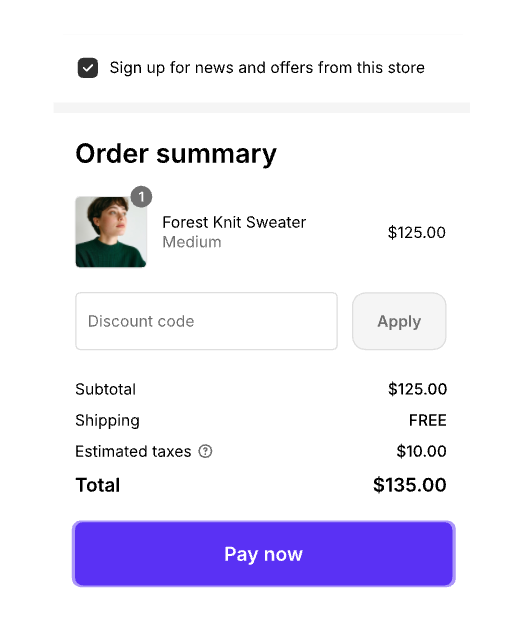
You don’t need WordPress for either one. But if you’d like a content-rich site with blogs and SEO alongside store functionality, you’ll want to connect WordPress.
What’s the difference between WordPress and Shopify?
The biggest difference is flexibility versus simplicity.
WordPress gives you full control over your site’s design, features, and content. It’s great if you want a custom site or plan to publish a lot of content alongside your store. The tradeoff is that setup and maintenance take more effort.
Shopify is easier to get up and running. It’s designed for selling first, so product management, checkout, and payments are smooth out of the box. You have fewer customization options, but far less technical work.
Which one should you choose?
The answer depends on your goals, budget, and the level of customization you’d like.
Consider choosing Shopify on its own if your main goal is to sell products quickly with minimal setup and ongoing maintenance. (And you don’t need content.)
Consider BigCommerce on its own if you’re managing multiple online stores, run an enterprise store, or have a B2B store. Consider choosing BigCommerce and WordPress if you also need content management.
Consider picking WooCommerce and WordPress to sell products directly on WordPress while keeping full control over design, content, and functionality. (A popular choice.)
Consider picking Shopify and WordPress if you want Shopify to handle all of the tricky parts of selling (like products, checkout, and payments). While WordPress takes care of blogs, SEO, and flexible content to support your store.
Note that:
WooCommerce itself is free. Though you’ll pay for hosting, a domain, and any premium plugins or themes. You also own your site and data.
Shopify is hosted, so you’re tied to its platform and pricing. That said, if you’re not very tech-savvy, Shopify may be a better choice — there’s less tech setup and most of the heavy lifting is handled for you.
Step 2: Pick a Theme/Template
Next, choose your theme or website template.
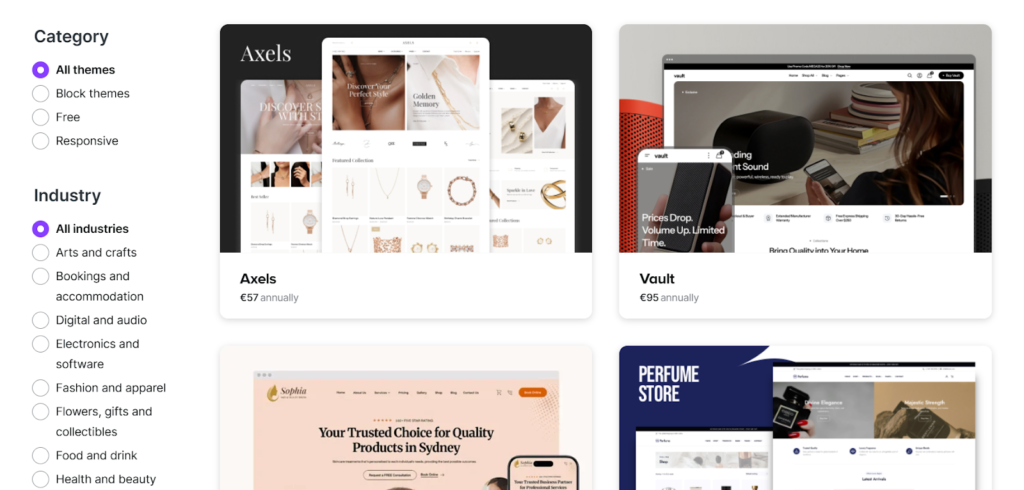
Each platform (WordPress/WooCommerce, Shopify, BigCommerce) has a theme or template library. This determines your site’s basic layout, style, and mobile responsiveness.
Here’s a beautiful theme you can start using now if you choose WordPress and WooCommerce for your online store.
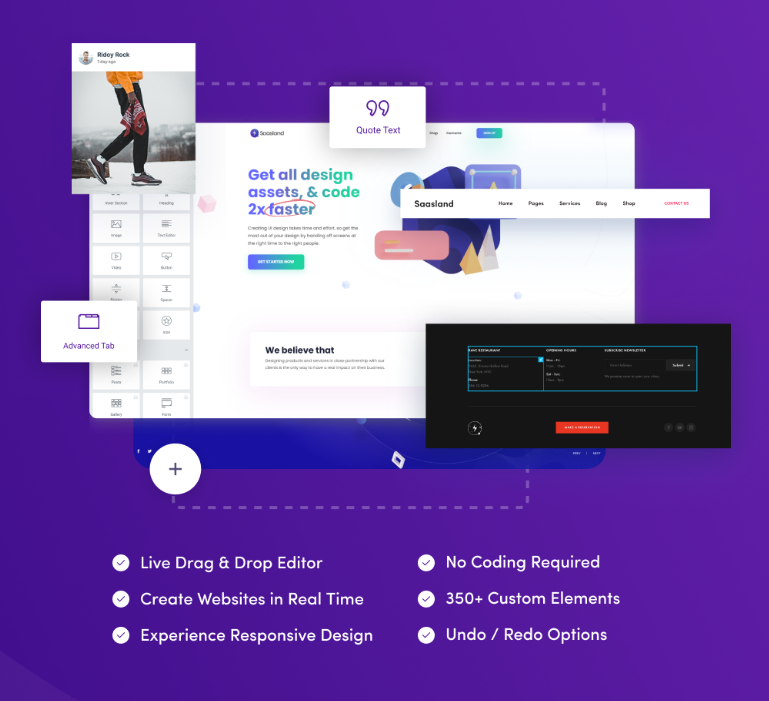
It has a responsive design (so it’s great for mobile, too). It also includes an impressive e-commerce demo you can use to showcase your products in a clear and visually pleasing way.
Use the live drag-and-drop editor to create your new e-commerce website in real time. No heavy code required.
Step 3: Follow the Theme/Template Setup Instructions
Follow the theme’s included setup instructions.
During this step, you’ll configure your store by:
- Adding products (make sure your product photography looks professional).
- Including product categories to organize your store better.
- Connecting plugins/apps if needed.
- Setting up payment gateways.
- Defining shipping.
- Setting tax rules.
*Pro-Tip: Use a “quick add to cart” option and make sure your checkout flows are seamless.
If you’re offering same or next-day fulfillment options, make sure you have a vendor who can help, like a same day delivery courier service for shoppers who need their items urgently. Display these choices prominently to reduce cart abandonment and increase customer trust.
If you run into a snag, head to the platform’s help center. Use the search feature to find support articles with step-by-step instructions to solve your problem.
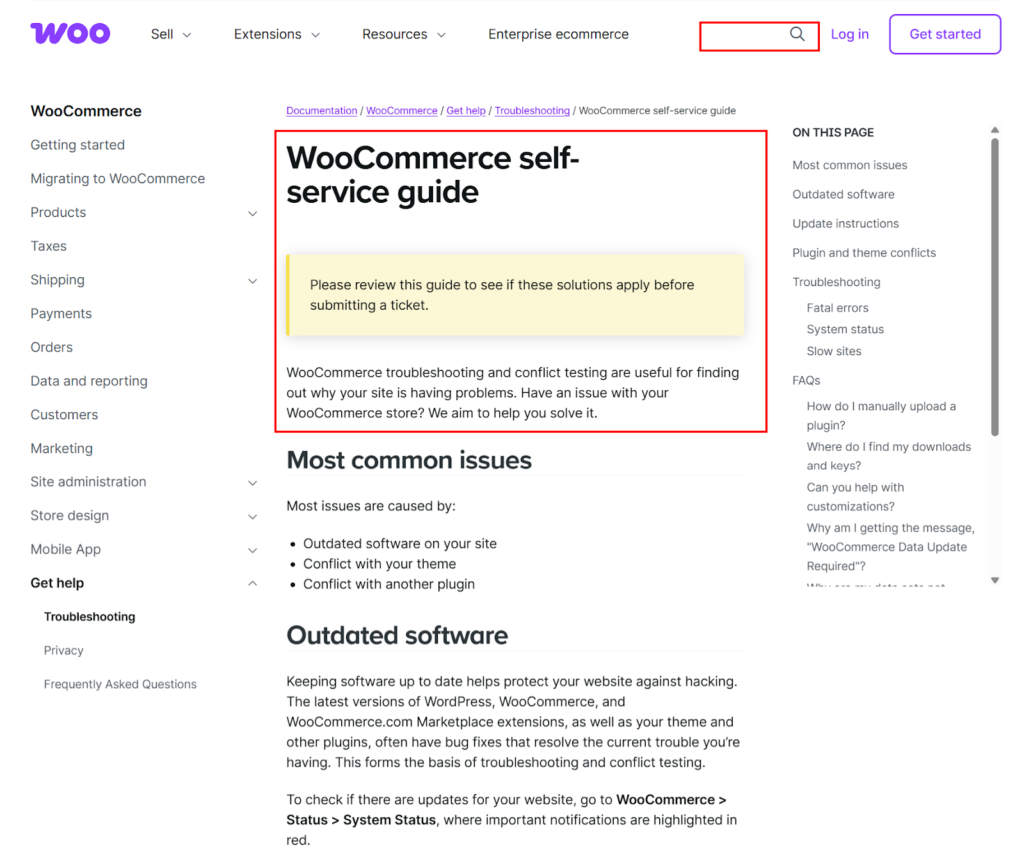
If you still need help, send a ticket to customer support.
Step 4: Customize Content and Design
Create your visual design and overall brand identity.
Adjust your colors, fonts, images, banners, product pages, and navigation to match your brand and optimize the shopping experience.
Adjust your colors, fonts, images, banners, product pages, and navigation to match your brand and optimize the shopping experience. Consider integrating custom AI avatars into key areas of your site to enhance engagement and support. These digital concierges can welcome visitors, answer product questions, and provide post-purchase assistance, helping deliver a more personalized, consistent experience for global customers.
Finally, if you’re building on WordPress, set up your SEO settings first. Then add content like blog posts and explainer pages to support your store and improve search visibility.
Step 5: Test and launch
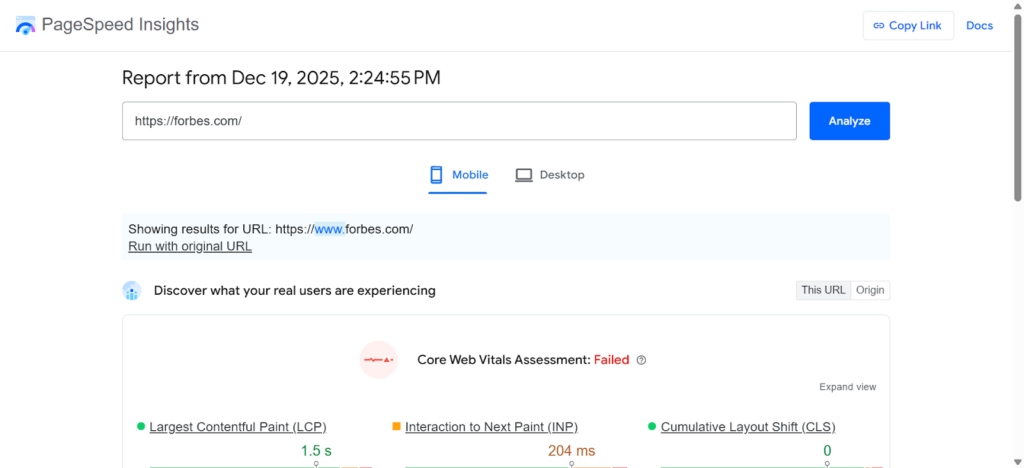
Check your website’s mobile and desktop versions to make sure they both run optimally and quickly. Run a PageSpeed Insights report to identify any lagging issues you need to address.
Before going live, test your checkout flows, product images, and all buttons and pages to make sure everything works.
After you’ve exited testing mode, it’s time to make your site live. Publish your site and share the news across ads and your organic marketing channels.
Wrap up
And there you have it! Five super practical steps to building your very own ecommerce website.
Remember that the website builder you choose will be the most important step. Vet out all of the options above to make sure you’ve chosen a platform that most aligns with your unique needs and goals.
For good measure, here’s a quick recap on the steps we covered in this guide:
- Step 1: Choose Where Your E-commerce Website Will Live
- Step 2: Pick a Theme/Template
- Step 3: Follow the Theme/Template Setup Instructions
- Step 4: Customize Content and Design
- Step 5: Test and launch
And remember, if you’re looking for a theme you can use right away, we recommend this beautiful WordPress theme that works with WooCommerce.
To your success!
FAQs About Ecommerce Websites
Your site should be easy to navigate and have product pages that answer buyers’ questions. Make sure it also offers a fast, clear checkout, works well on mobile, and includes elements that build trust, such as customer reviews.
Keep it simple. Make choices easy, use casual language your buyers understand, and speed up load times. Keep everything consistent so users know what to expect.
People on mobile are often on the go or multitasking. Your website needs to feel easy to use so buying is quick and convenient.
To improve conversion rates on your e-commerce site, cut down friction.
Show costs early, let users compare products, and address any product doubts upfront. You can also speed up checkout — and set up cart-abandonment sequences to encourage people who ghosted to come back and finish their checkout.
Don’t overcomplicate navigation, hide shipping or return info until the last minute, or ignore mobile users.
Site speed is very important for e-commerce. Slow pages frustrate users and hurt trust, especially at checkout where hesitation is highest.
Trust lowers risk in buyers’ minds. Transparency, clear policies, and real social proof make people more comfortable buying and returning.
Update your website design often enough to stay current. Quarterly UX audits and small tweaks can help you keep up with customer expectations and avoid design debt. You can also use AI to improve your website.
E-commerce UX is about helping users make decisions and feel confident about purchases. It’s not just about looking good or sharing info.
Yes, but keep it subtle. Personalization should make users feel understood without feeling watched or overwhelmed.


